Skip to content

SpiceApp

  • Products
    • POS Lite
    • AI Dashboard
    • Marketing Automation
    • AI Phone Answering
    • Restaurant POS
    • Kitchen Display System
    • Online Ordering
  • Solutions
    • Franchise Solutions
    • New Restaurant Solutions
    • Small-Medium Restaurant Solutions
  • Pricing
Get Free Demo

Fire POS (v2)

13
  • How to Login into Fire POS
  • How to Place a Pickup Order
  • How to Place a Delivery Order
  • How to Place a Dine-in Order
  • How to view Orders (open, paid, closed)
  • How to make a Split Payment
  • How to cancel an Order
  • How to view Daily Sales Report (End of the Day Feature)
  • How to make Scheduled Orders
  • How to Clock-In
  • How to Edit Orders
  • How to Issue a Refund
  • How to update order status

Dashboard

16
  • How to Search for Orders by Date and Order Number
  • How to View Card Transactions
  • How to change order status and mark complete on Dashboard
  • How to Edit Employee Status to Inactive in Dashboard
  • How to add store hours, enable/disable Online Ordering and Delivery
  • How to Add an Employee, Add Role, Add Pay Rate and Set Employee Pin
  • How to Apply and Configure a Coupon Code in the Dashboard
  •    How to View/Print Reports
  • How to change order status
  • How to cancel an order
  • How to search for an order
  • How to mark order as paid
  • How to add notes to an order
  • How to setup Kitchen Workstation
  • How to setup a new store
  • PCI COMPLIANCE

EZMenu

12
  • How to Add a Variant
  • How to Delete a Variant
  • How to add a Combo Item to Category
  • How to Add a Regular Item to a Category
  • How to Disable an item
  • How to disable a category
  • How to Change Price of a Item
  • How to Remove an Product extra/add-ons
  • How to Enable a category
  • How to Enable an item
  • How to Add product extra/add-ons
  • Product Options Features

SpiceApp POS (v1)

9
  • How to do a evenly split payment
  • How to make a split payment by item
  • How to make a custom split payment
  • How to place a Dine-In order
  • How to place Pick-Up order
  • How to place an Aggregate order
  • How to change the status of an order
  • How to pay for an order(cash)
  • How to pay for an order by(card)

Onboarding Process

2
  •  How to fill registration form
  • Completing Customer Onboarding Process on SpiceApp after clicking the verification link in the email

General FAQ

2
  • How to update Google Business website and Ordering Link for your Restaurant
  • Setup Google Business Profile (GBP) for Restaurants
View Categories
  • Home
  • Docs
  • Fire POS (v2)
  • How to cancel an Order

How to cancel an Order

< 1 min read

How to cancel an Order #

This guide provides step-by-step instructions on how to cancel an order. It is useful for anyone who needs to cancel an order and wants clear guidance on how to do so.


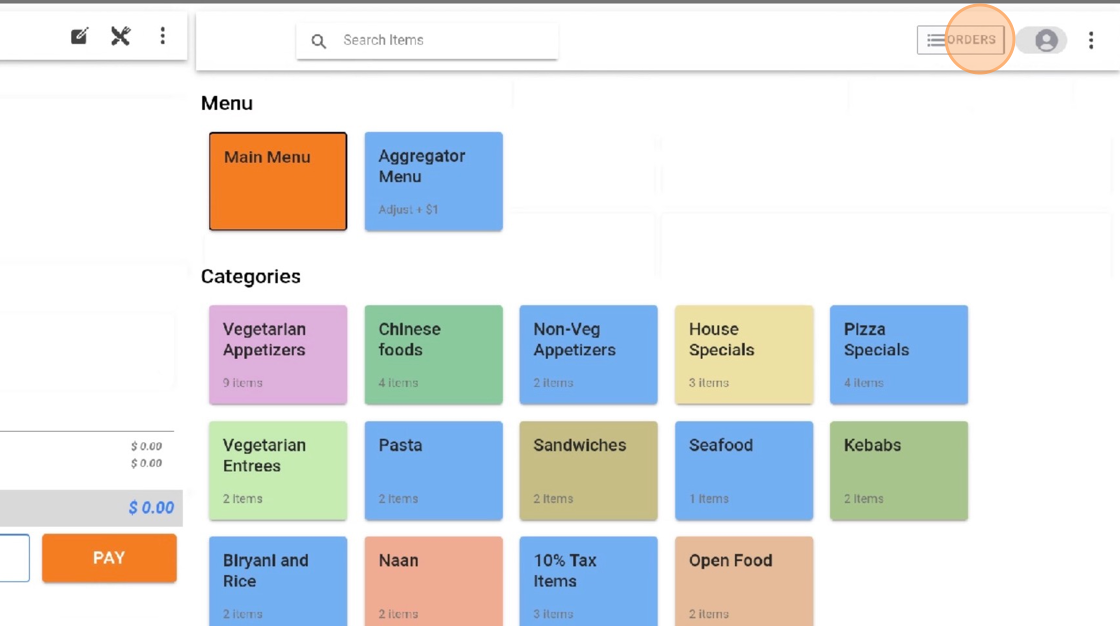
1. Click on the “ORDERS” button.
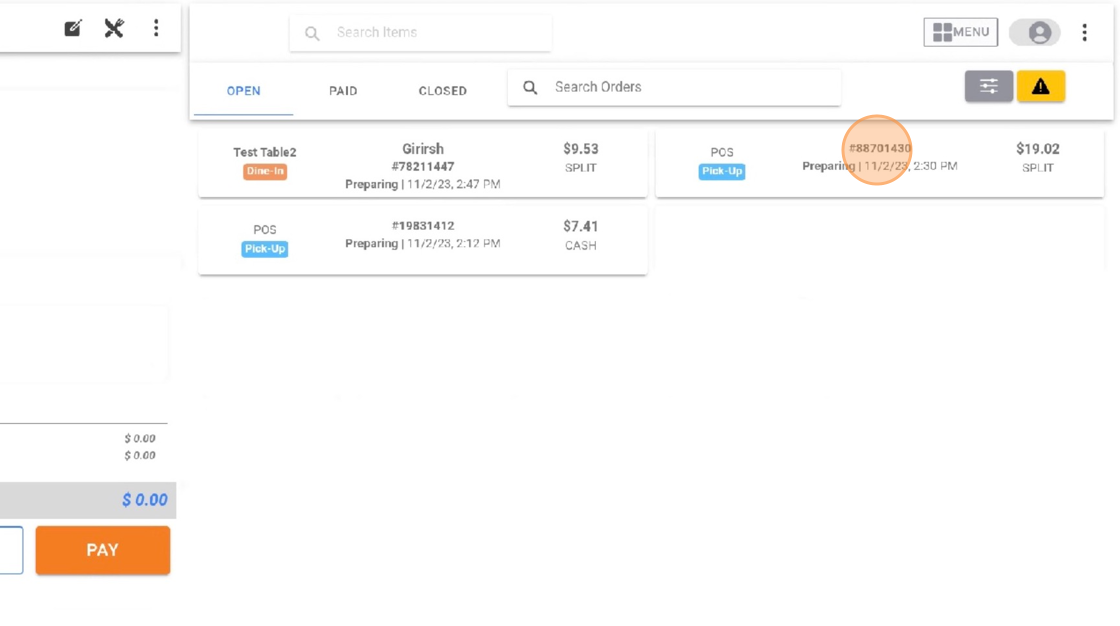
2. Click on the order you would like to cancel.
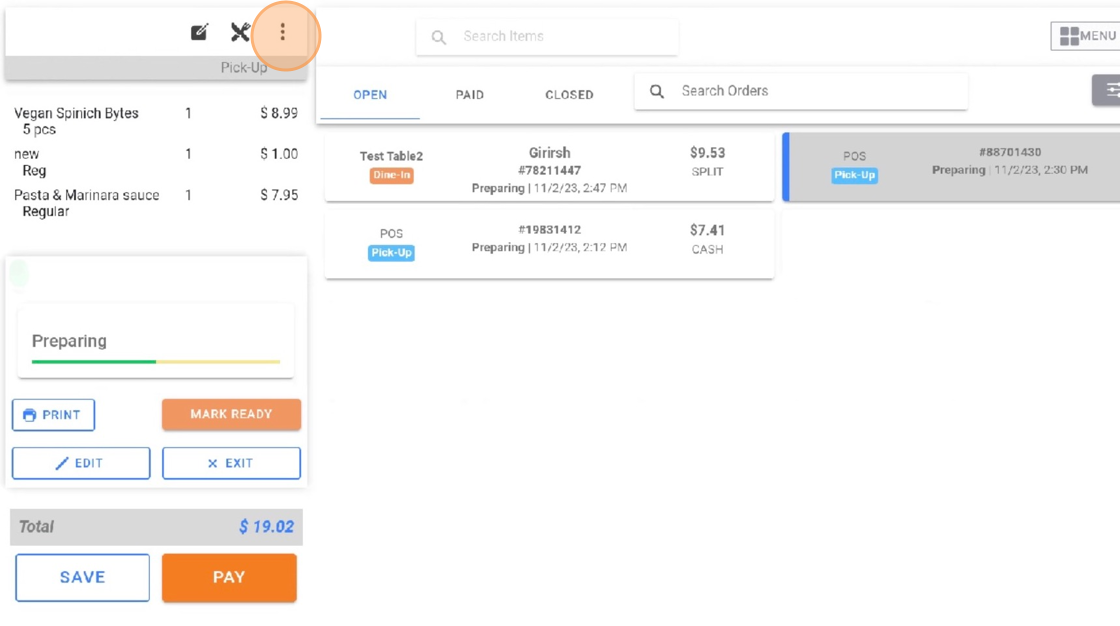
3. Click on the three vertical dots icon.
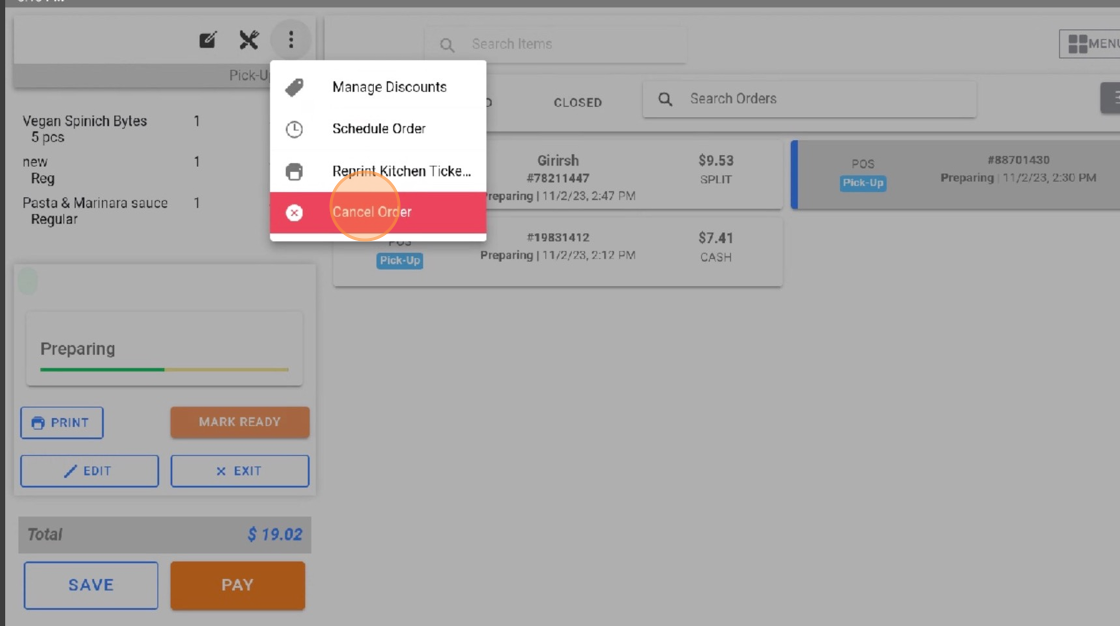
4. Click on the option named “Cancel Order”.
5. Click on the reason for canceling the order.
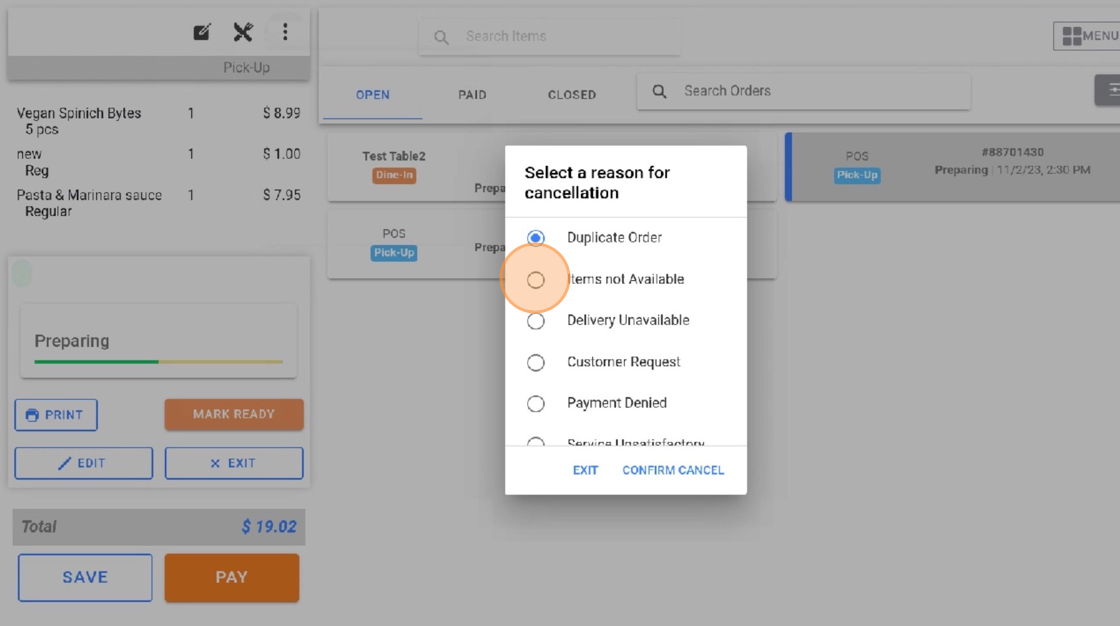
6. Click on the “CONFIRM CANCEL” button.
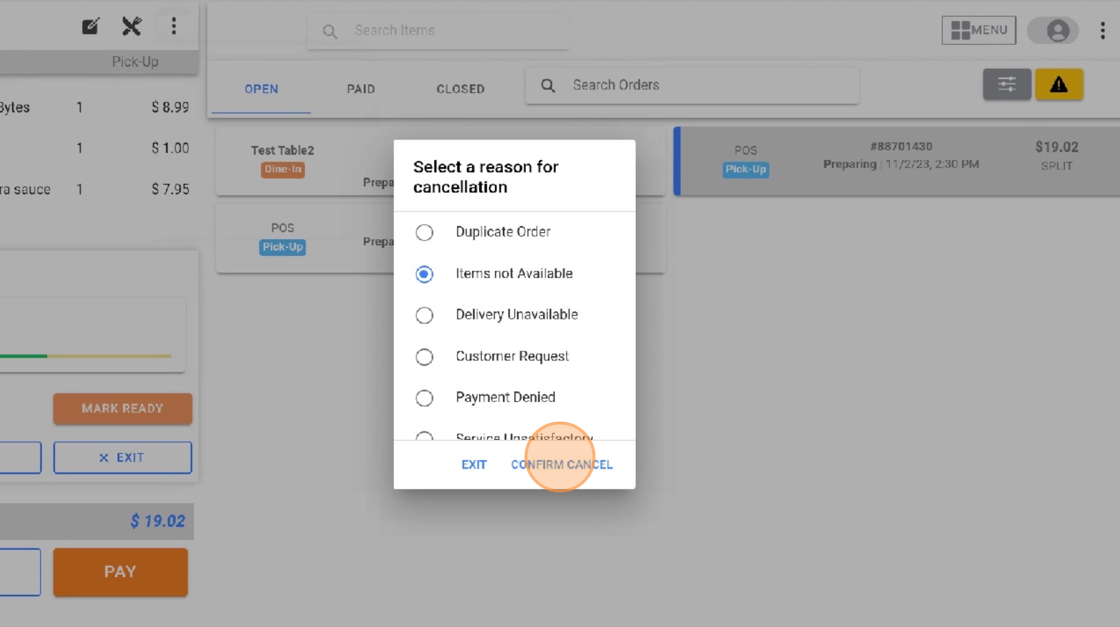
 

6. After you have canceled the order. If you would like to place another order. Click on the following links to view tutorials on the different types of orders.

Links:

  • Pickup Order
  • Dine-in Order
  • Delivery Order


Updated on February 26, 2026

What are your Feelings

  • Happy
  • Normal
  • Sad

Share This Article :

  • Facebook
  • X
  • LinkedIn
  • Pinterest
How to make a Split PaymentHow to view Daily Sales Report (End of the Day Feature)

Powered by BetterDocs

Leave a Reply Cancel reply

Your email address will not be published. Required fields are marked *

Table of Contents
  • How to cancel an Order

Products

  • POS Lite
  • AI Dashboard
  • Marketing Automation
  • AI Phone Answering
  • Restaurant POS
  • Kitchen Display System
  • Online Ordering

Solutions

  • Franchise Solutions
  • New Restaurant Solutions
  • Small-Medium Restaurant Solutions
Facebook-f Twitter Instagram
  • © 2026 -Spiceapp.