Skip to content

SpiceApp

  • Products
    • POS Lite
    • AI Dashboard
    • Marketing Automation
    • AI Phone Answering
    • Restaurant POS
    • Kitchen Display System
    • Online Ordering
  • Solutions
    • Franchise Solutions
    • New Restaurant Solutions
    • Small-Medium Restaurant Solutions
  • Pricing
Get Free Demo

Fire POS (v2)

13
  • How to Login into Fire POS
  • How to Place a Pickup Order
  • How to Place a Delivery Order
  • How to Place a Dine-in Order
  • How to view Orders (open, paid, closed)
  • How to make a Split Payment
  • How to cancel an Order
  • How to view Daily Sales Report (End of the Day Feature)
  • How to make Scheduled Orders
  • How to Clock-In
  • How to Edit Orders
  • How to Issue a Refund
  • How to update order status

Dashboard

16
  • How to Search for Orders by Date and Order Number
  • How to View Card Transactions
  • How to change order status and mark complete on Dashboard
  • How to Edit Employee Status to Inactive in Dashboard
  • How to add store hours, enable/disable Online Ordering and Delivery
  • How to Add an Employee, Add Role, Add Pay Rate and Set Employee Pin
  • How to Apply and Configure a Coupon Code in the Dashboard
  •    How to View/Print Reports
  • How to change order status
  • How to cancel an order
  • How to search for an order
  • How to mark order as paid
  • How to add notes to an order
  • How to setup Kitchen Workstation
  • How to setup a new store
  • PCI COMPLIANCE

EZMenu

12
  • How to Add a Variant
  • How to Delete a Variant
  • How to add a Combo Item to Category
  • How to Add a Regular Item to a Category
  • How to Disable an item
  • How to disable a category
  • How to Change Price of a Item
  • How to Remove an Product extra/add-ons
  • How to Enable a category
  • How to Enable an item
  • How to Add product extra/add-ons
  • Product Options Features

SpiceApp POS (v1)

9
  • How to do a evenly split payment
  • How to make a split payment by item
  • How to make a custom split payment
  • How to place a Dine-In order
  • How to place Pick-Up order
  • How to place an Aggregate order
  • How to change the status of an order
  • How to pay for an order(cash)
  • How to pay for an order by(card)

Onboarding Process

2
  •  How to fill registration form
  • Completing Customer Onboarding Process on SpiceApp after clicking the verification link in the email

General FAQ

2
  • How to update Google Business website and Ordering Link for your Restaurant
  • Setup Google Business Profile (GBP) for Restaurants
View Categories
  • Home
  • Docs
  • Fire POS (v2)
  • Dashboard
  • How to add store hours, enable/disable Online Ordering and Delivery

How to add store hours, enable/disable Online Ordering and Delivery

< 1 min read

How to add store hours, enable/disable Online Ordering and Delivery #

guide provides clear and concise instructions on how to add store hours, enable/disable online ordering, and enable/disable delivery. By following these steps, you can easily customize your store settings to meet your specific requirements.

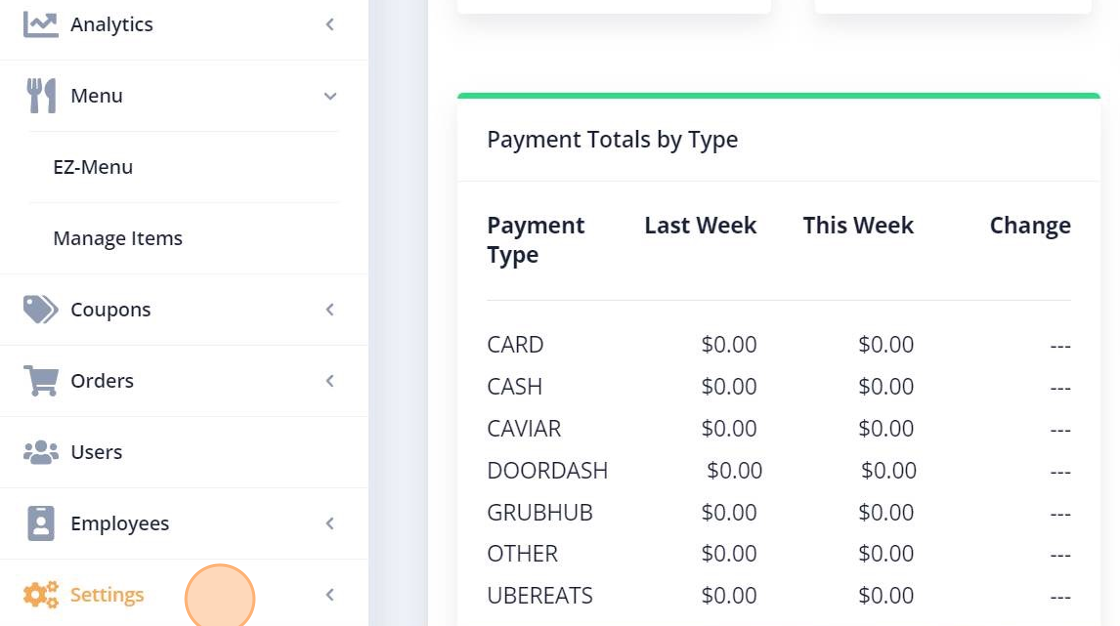
1. Click on “Settings” Tab #
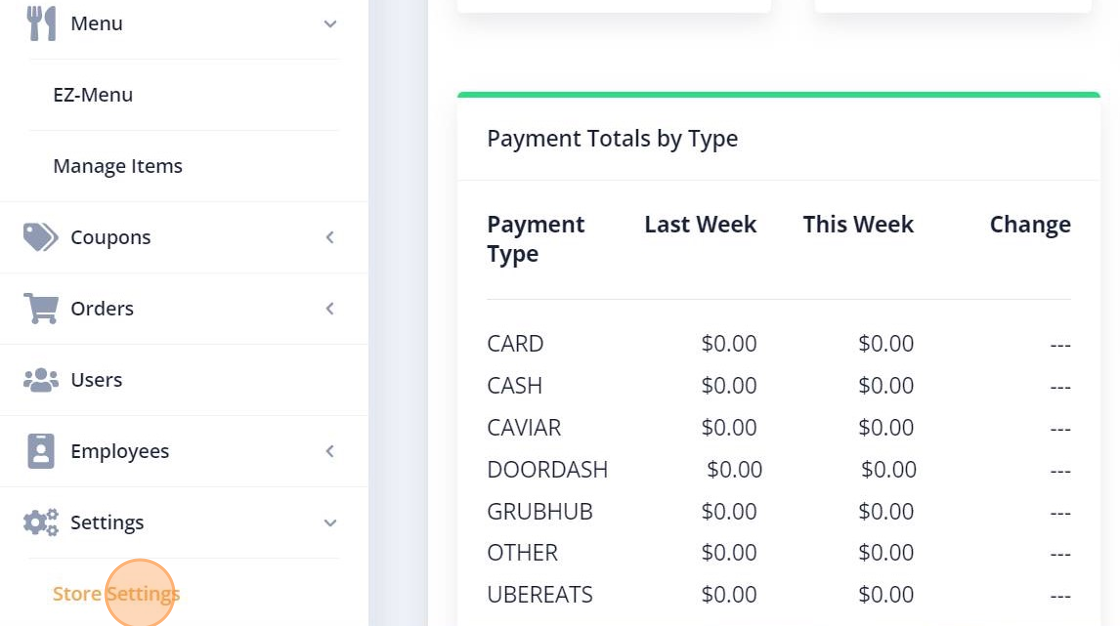
2. Click on “Store Settings” #
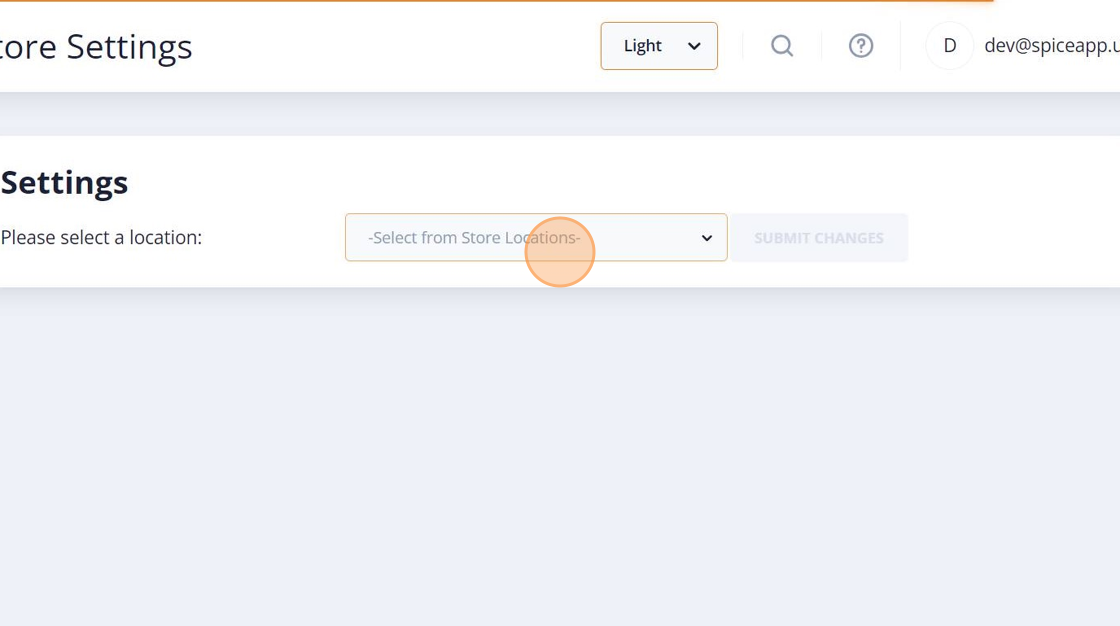
3. Select your Store Location #
4. Select the Store Hours #
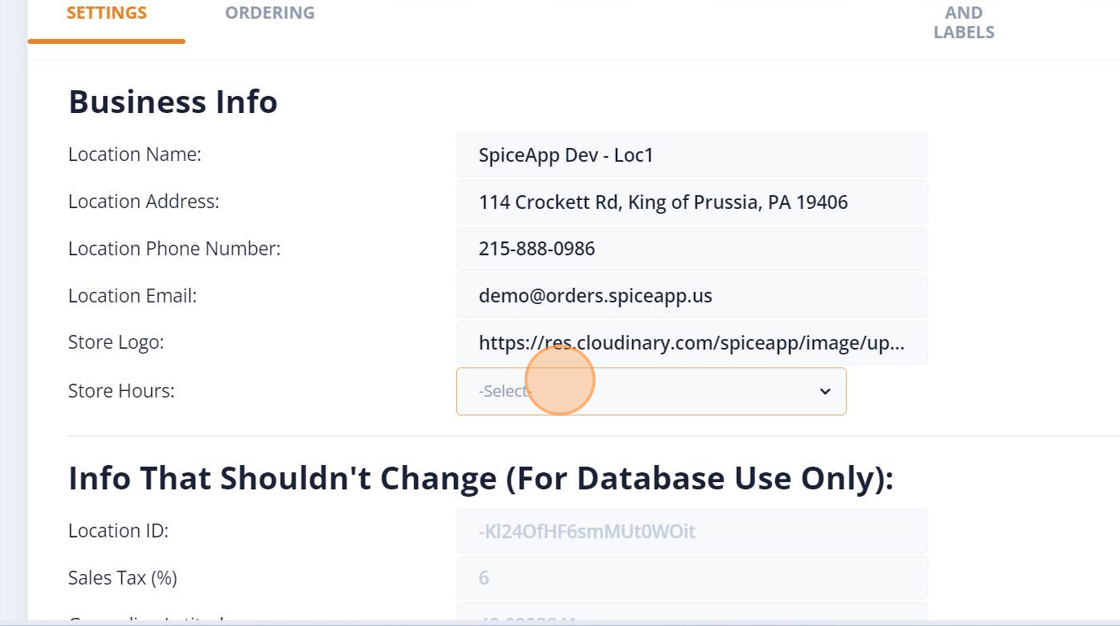
5. Click on ADD/CHANGE Hours button #

6. Click on Online Ordering Tab #
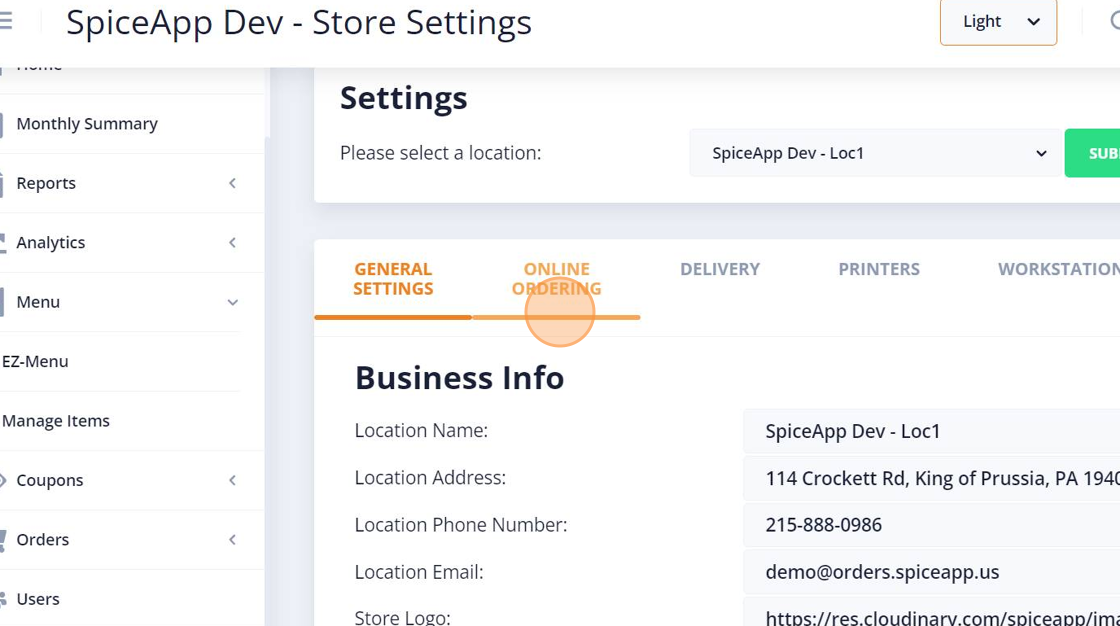
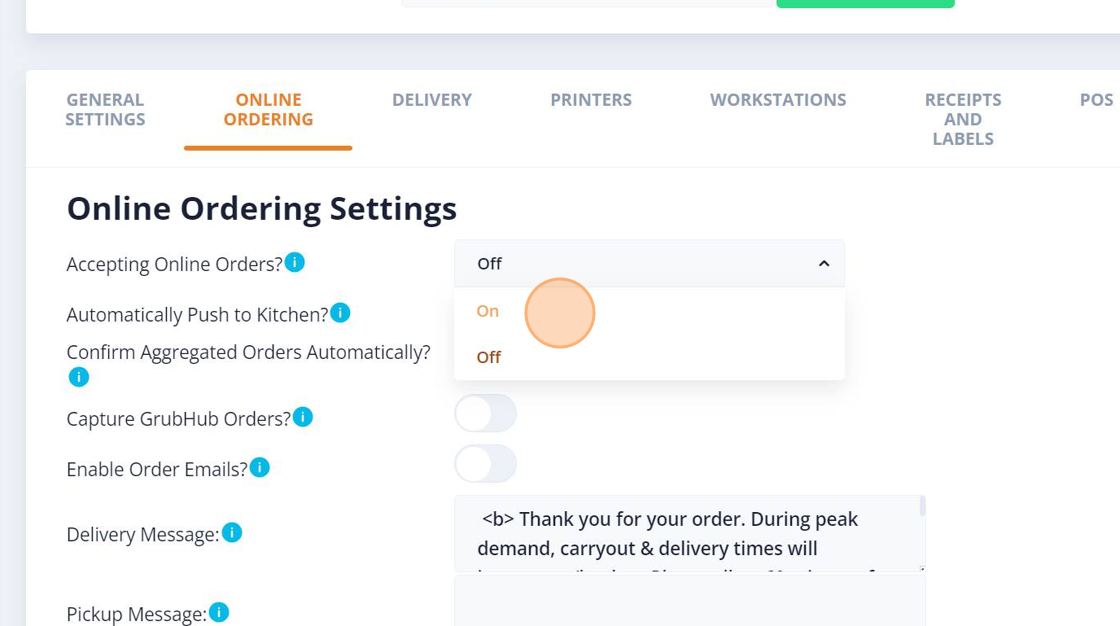
7. Go to Accepting Online Orders Options and select “On/off” as per your requirement #
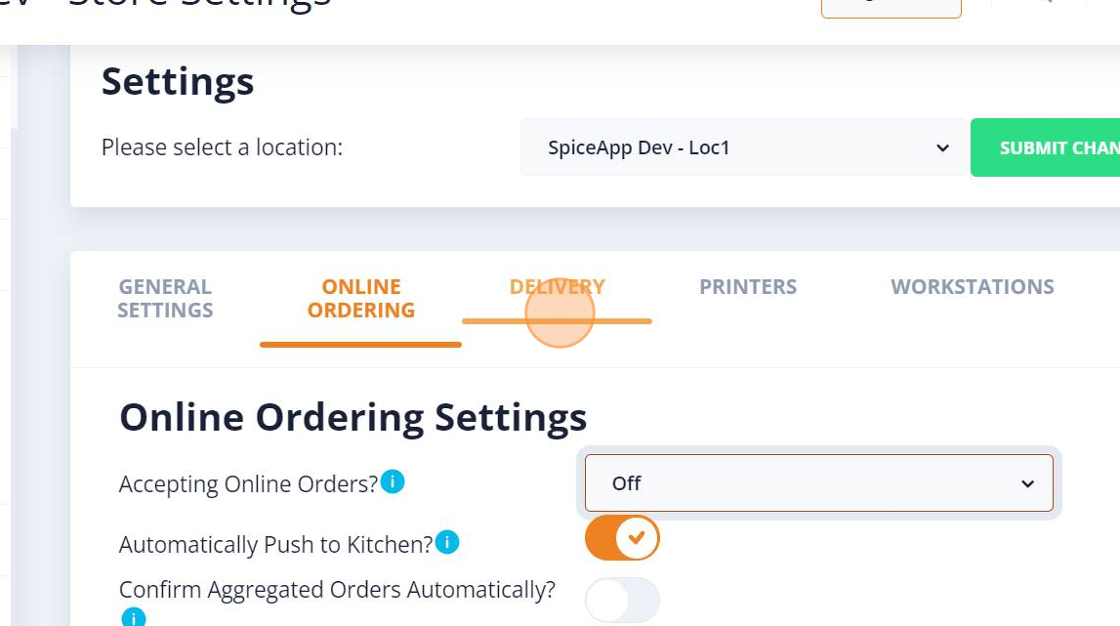
8. Click on Delivery Tab #
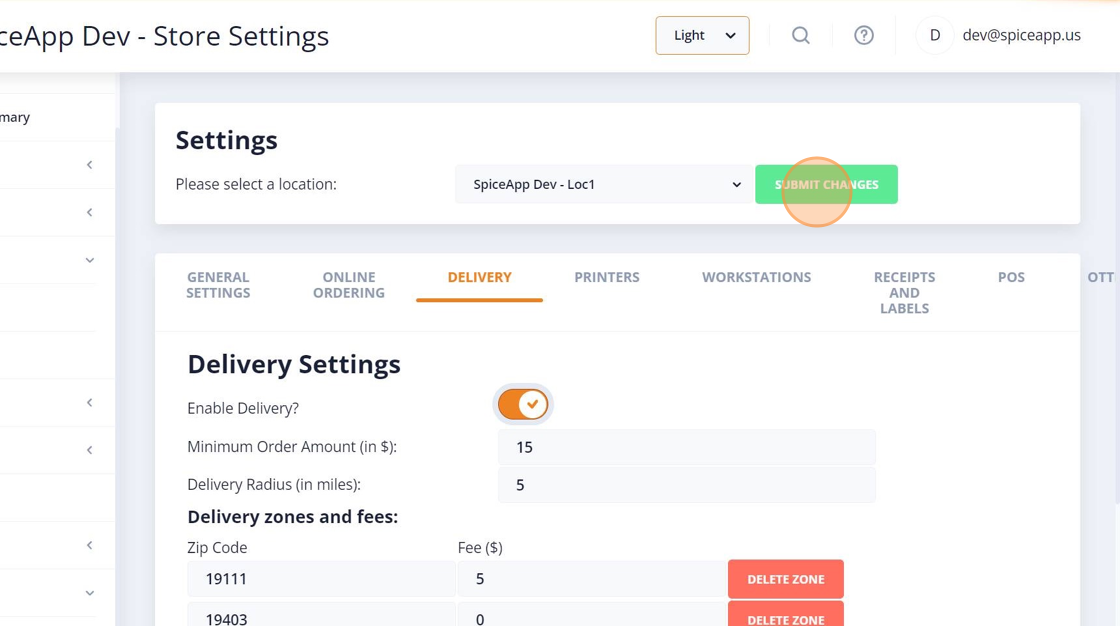
9. Click on Enable Delivery toggle button to Enable/Disable #
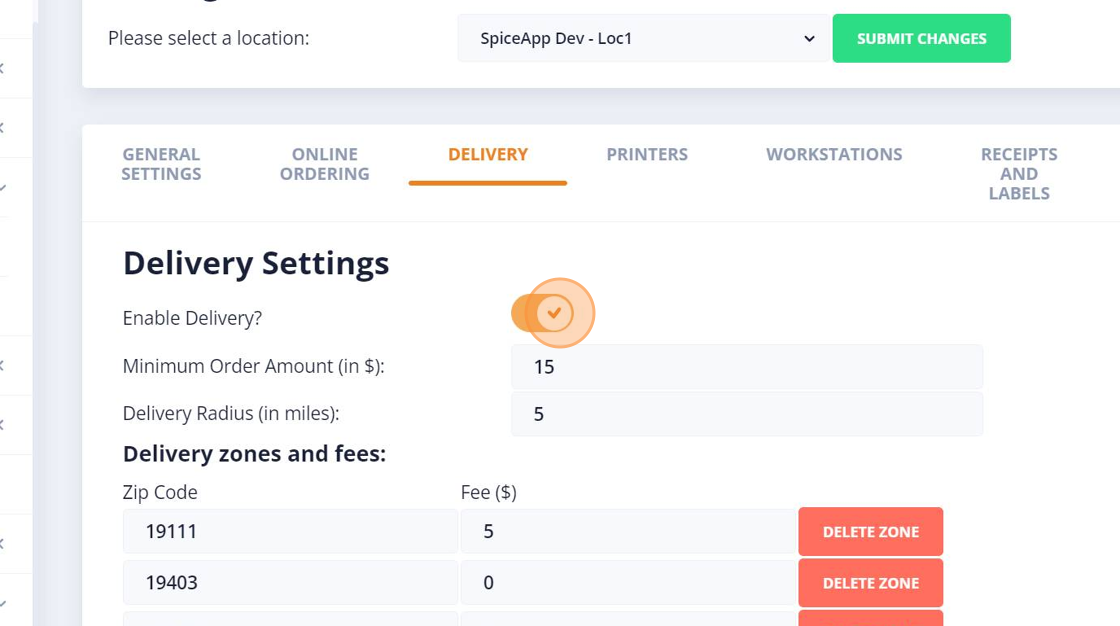
10. click on submit changes button to save all your changes #


Updated on February 26, 2026

What are your Feelings

  • Happy
  • Normal
  • Sad

Share This Article :

  • Facebook
  • X
  • LinkedIn
  • Pinterest
How to Edit Employee Status to Inactive in DashboardHow to Add an Employee, Add Role, Add Pay Rate and Set Employee Pin

Powered by BetterDocs

Leave a Reply Cancel reply

Your email address will not be published. Required fields are marked *

Table of Contents
  • How to add store hours, enable/disable Online Ordering and Delivery
    • 1. Click on "Settings" Tab
    • 2. Click on "Store Settings"
    • 3. Select your Store Location
    • 4. Select the Store Hours
    • 5. Click on ADD/CHANGE Hours button
    • 6. Click on Online Ordering Tab
    • 7. Go to Accepting Online Orders Options and select "On/off" as per your requirement
    • 8. Click on Delivery Tab
    • 9. Click on Enable Delivery toggle button to Enable/Disable
    • 10. click on submit changes button to save all your changes

Products

  • POS Lite
  • AI Dashboard
  • Marketing Automation
  • AI Phone Answering
  • Restaurant POS
  • Kitchen Display System
  • Online Ordering

Solutions

  • Franchise Solutions
  • New Restaurant Solutions
  • Small-Medium Restaurant Solutions
Facebook-f Twitter Instagram
  • © 2026 -Spiceapp.